
Flows automation
Automation that does the billing, not just the reminders
Flows run when something happens or on a schedule, check your conditions, then act. Clip one to a client's project and it opens the timesheet and creates the invoice at the end of every period.
Included on every plan with a monthly Flow run allowance that grows with each plan; billing from approved timesheets uses approvals, which start on Team.
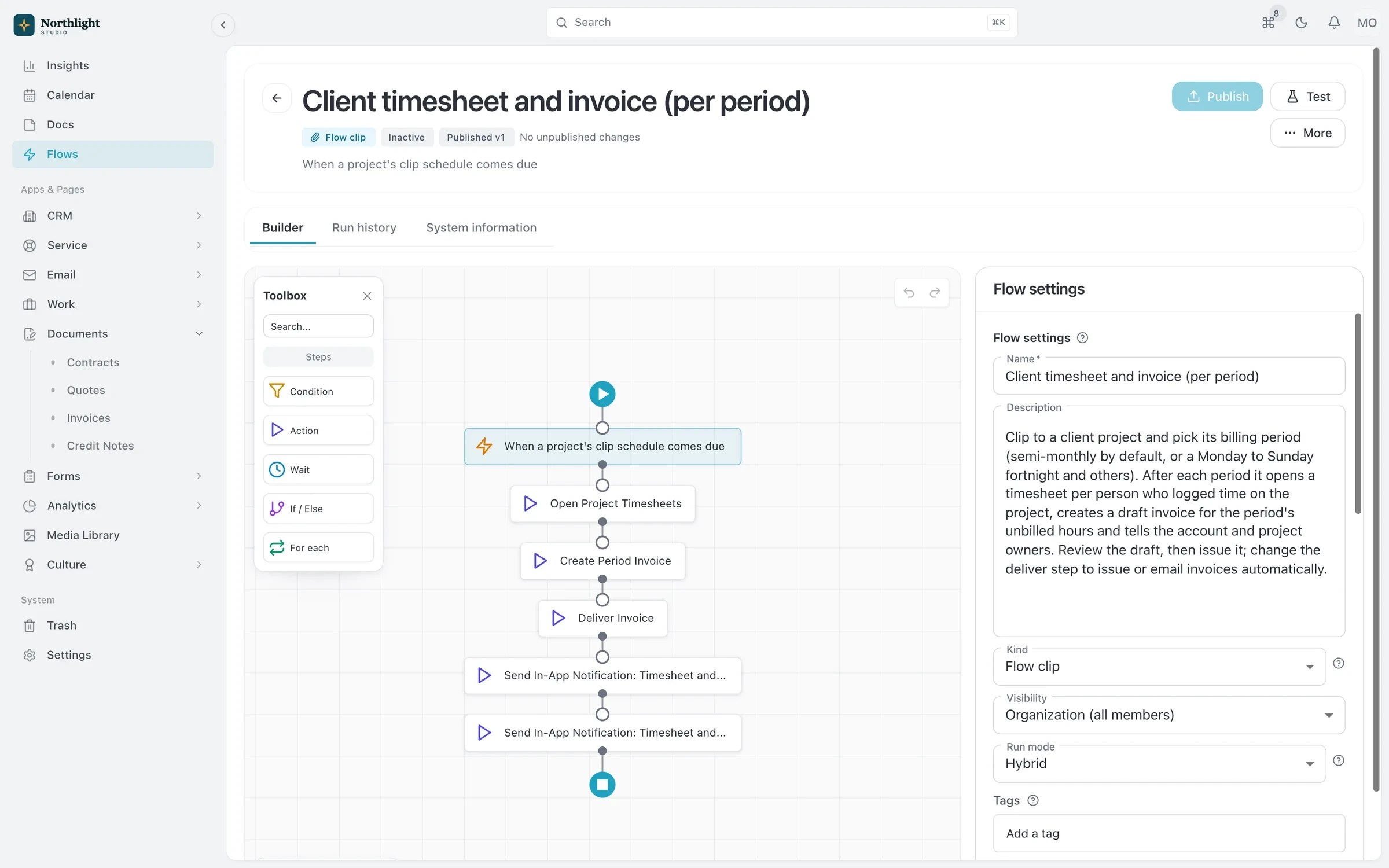
- When, If, Then steps
- Billing schedule
- Create period invoice
The problem
Sound familiar?
- Month end means a day of exporting hours and building invoices by hand.
- Every client bills on a different cycle and I keep a calendar of who is due.
- I don't trust automations because I can't see what they'll do until they've done it.
How it works
When, If, Then
1
Pick a trigger
A record is created or changed, a status moves, time is tracked, a date arrives, an email or webhook comes in, or a schedule fires.
2
Add conditions
Branch with If and Else on the record, its related records, previous values or the period a scheduled run covers.
3
Choose the actions
Create or update records, send email or notifications, open timesheets, create period invoices, call an HTTP endpoint, or wait.
4
Test, then publish
Test against a real record and see every step's result without changing data. Then publish it, or clip it to a client.
What you get
- Flow clips
- Attach a flow to one client, project or case with its own schedule and recipients, straight from the Flows button on the record.
- Billing on a schedule
- Weekly, every two weeks, twice a month or monthly. Reuse the last invoice's layout, terms and notes, and choose draft, issue, or issue and send.
- Reminders before a period ends
- Run a clip a set number of days before the period closes, for example to remind the team to finish their timesheets.
- Catch up on a missed period
- Run a flow for a past period to create the timesheet or invoice that should have gone out.
- Ready-made templates
- Start from flows for invoice reminders, client timesheets and invoices, completed projects and web form leads.
- Safe to change
- Drafts until you publish, undo and redo, version history, and a warning before you edit a flow that is already running.
Read the documentation
Works with
Quotes and invoicing
Quotes that become deposit, progress and final invoices, plus invoicing from hours and credit notes.
Learn moreProjects and time tracking
Projects, task boards, timers and timesheets, with budgets and hours that carry into invoices.
Learn moreAPI and MCP
A first-party MCP server and REST API, free on every plan, that act with your own role and permissions.
Learn more
Used by: agencies
Compare: vs Dubsado, vs Bonsai, vs monday.com, vs Zoho
Flows automation: questions
Something else? Ask us.
Does SparkDesk connect to Zapier or Slack?
No, there are no Zapier or Slack integrations. A flow can call an HTTP endpoint through a saved connection or start from an incoming webhook, and the REST API is available on every plan.
How many flow runs do I get?
Every plan includes a monthly allowance, from 100 runs on Free to 25,000 on Business. Paid plans can add packs of 1,000 runs.
What happens if a flow keeps failing?
A flow that fails five times with the same error within seven days is paused, and its owner is notified.
Who can build and run flows?
By default Owners and Admins build flows, Members clip and run them, and Read-only users can view them. You can change this per role, and the same rules apply over the API and MCP.
Run your next client project in SparkDesk.
Start a 14-day free trial of any paid plan. No card needed, and you can drop to the Free plan at any time.